Saturday, 24 September 2011

How to update your windows product key


Follow these steps to change your product key in Windows 7.


Note: If you bought an edition of Windows 7 other than what's installed on your PC—for example, if you purchased Windows 7 Home Premium, and Windows 7 Ultimate is now installed on your PC—you'll need to perform a custom installation to update your product key.

Also Check Out : List of interesting articles
 
Important: You'll need your new product key to complete the product key update process. For examples of where to find your product key.
  1. Click the Start button , right-click Computer, and then click Properties.
  2. Scroll down to the bottom of the window that appears, and then, under Windows activation, click Change product key. If you're prompted for permission to continue the process, click Continue.
  3. Follow the instructions to change your product key and activate your copy of Windows 7.

Follow these steps to change your product key in Windows XP 

To change your Windows XP product key, you'll need to use the Windows Product Key Update Tool. Before running the tool, read all instructions to make sure that you understand how the tool works and what information is sent to Microsoft as part of the update process.

How it works

The Windows Product Key Update Tool will make changes to your Windows installation to update your product key. In addition, the tool will scan a number of key Windows files to determine if they have been tampered with. If tampered files are discovered, the Windows Product Key Update Tool will alert you before continuing.

What information is collected

Using the Windows Product Key Update Tool results in information being sent to Microsoft. The information collected will not be used to identify or contact you. The information sent is standard Windows validation information as well as information related to the file tampering scan.
Note:‌ Microsoft recommends creatingsystem restore point before making any operating system changes.
Important: You'll need your 25-digit product key to complete the product key update process. For examples of where to find your product key .
To update your product key
  1. When prompted to run or save the Windows Product Key Update Tool installer, click Run.
  2. Follow the instructions in the installer.
After updating your product key, you will be required to activate Windows XP. If you still have issues after running the tool or with activation, visit the Windows XP Solution Center on the Microsoft Support website for additional assistance.


Disable right click functionality on desktop


Steps to disable the right click functionality on desktop:

- To use this feature, you will need to be logged into your computer with administrative rights.
- Click Start button and type regedit in Run option then press Enter for next.

- Here locate the location to:


HKEY_CURRENT_USERSoftwareMicrosoftWindowsCurrentVersionPoliciesExplorer


    - Here in right side panel, right click to create a new DWORD value with the name NoViewContextMenu (it is case sensitive), then assign number 1 in value data box.
    - Now close the registry editor and restart your computer after any changes to go into effect.

    Also Check Out : List of interesting articles 

Turn on your PC Just in seconds


TURN ON UR PC IN JUST 10 SECONDS 

- Right Click on the start button then press R it will take u to Run well go to run, type Regedit  and press enter
  this will
- open Registery Editor now look for the key HKEY_LOACAL_MECHINESYSTEMCurrentControlSetControlContentIndex   now there find the Key Called
 "Startup Delay"
- Double Click On It and Now where its Base Click Decimal
- Now its Default Value Is 4800000 (75300:hexadecimal) ,Change The Value To 40000
- close the Registery Editor 
- Restart Your Computer 

Also Check Out : List of interesting articles

How to hide a file in a image

1.Gather the file you wish to bind, and the image file, and place them in a folder. For the sake of this demonstration, I will be using  C:New Folder


-The image will hereby be referred to in all examples as fluffy.jpg
-The file will hereby be referred to in all examples as New Text Document.txt

2. Add the file/files you will be injecting into the image into a WinRar .rar or .zip. From here on this will be referred to as (secret.rar)

3. Open command prompt by going to Start > Run > cmd

4. In Command Prompt, navigate to the folder where your two files are by typing
cd location [ex: cd C:New Folder]

5. Type [copy /b fluffy.jpg + secret.rar fluffy.jpg] (remove the brackets)


Also Check Out : List of interesting articles

Congrats, as far as anyone viewing is concerned, this file looks like a JPEG, acts like a JPEG, and is a JPEG, yet it now contains your file.

In order to view/extract your file, there are two options that you can take

a) Change the file extension from fluffy.jpg to fluffy.rar, then open and your file is there.
b) Leave the file extension as is, right click, open with WinRar and your file is there.

Hide Files or Folders Using Command Prompt Which cannot be viewed by search option.


The most important thing is that, once hidden with this method, the files/folders cannot be viewed by any search options even if you click "Show All Hidden Files and Folders".
Hiding the most wanted files and folders is very important nowadays and it's really a tedious job too. In order to make this tedious job an easy one, i'm going to deliver you a the trick now.

For Example: You have a folder named "collegephotos" and this folder is stored in (Disk Drive E). You think that it should not be seen by strangers who use your PC.

Also Check Out : List of interesting articles

For that you need to follow the following instructions

  1. Press windowkey+R: Run command dialog box appears.
  2. Now type "cmd" and hit enter. A command prompt window displays.
  3. Now type "attrib +s +h E:\collegephotos" and hit enter.
  4. The folder "collegephotos" will be hidden (Note: It cannot be viewed by any search options)
    (To view this folder again, use the same command but replace '+' with '-' on both flags 's' and 'h')

Tuesday, 20 September 2011

How to connect 2 computers using LAN .


To create a simple LAN connection between two PCs/Laptops, the only hardware requisite is an Ethernet Crossover Cable. Ethernet Crossover Cables are easily available in the market. You can buy one online starting from $1 or you can go for a branded one from Belkin (available at buy.com) for $3.

Also Check Out : List of interesting articles


Setting up LAN Connection

1. Connect the one end of the cable to your PC/laptop and then the other end to the other PC/laptop and make sure the clips are locked into the Ethernet Port.
2. If it’s correctly connected, you should be noticing a computer icon near the clock in the taskbar on both the PCs. Right-click and choose Network Connections. OrControl Panel -> Network Connections.
Windows Vista & Windows 7 users, open Network & Sharing Center fromControl Panel and click Manage Network connections.
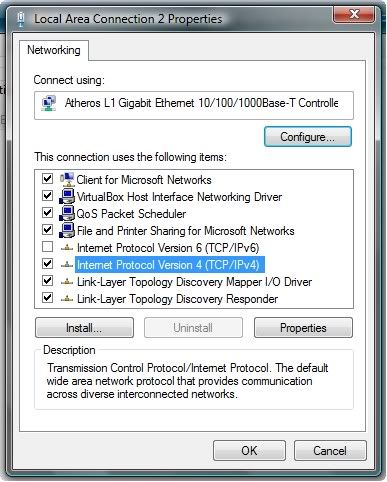
3. Right-click Local Area Connection and choose Properties
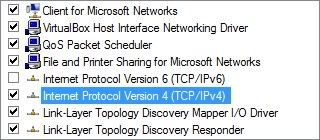
4. Double-click Internet Protocol (Vista users, Internet Protocol Version 4 – IPv4)
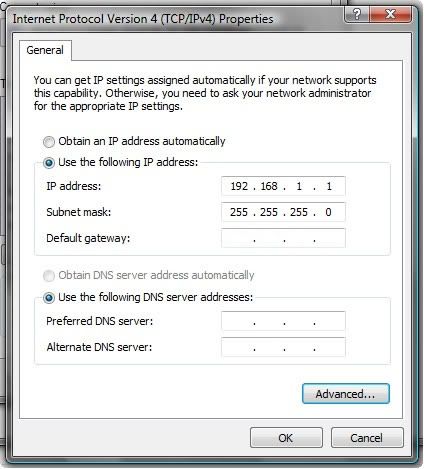
5. Choose “Use the following IP Address” radio box and enter the following details
6. Click OK
7. Follow steps 1-4 on the other PC, and enter it’s IP & Subnet Mask as:

Workgroup Name

If both the PCs use the same Workgroup name “WORKGROUP” (by default), you may leave step 8 and 9.
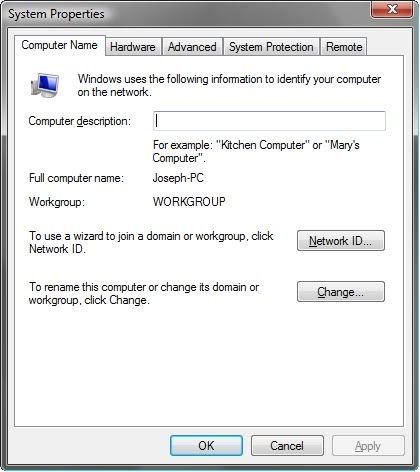
8. Finally you’ll have set up a Workgroup name on both the PCs/Laptops. To do so, right-click My Computer, click Properties, select the Computer Name tab and click Change and enter a name. Remember, the name should be the *same* on both PCs.
Vista users, My Computer -> Properties. Under Computer name, click Change Settings. Click Change button and enter a name. Remember, the name should be the *same* on both PCs.
9. Click OK
10. Restart both the PCs
You can now share folder or play multiplayer games via LAN. To share a folder, right-click the folder you wish to share and click Properties. Select Sharing tab and enable Sharing for folder. Open Network to access the files that are shared by the other PC.
To play multiplayer via LAN, all you need is a game that supports Multiplayer. Proceed with Multiplayer mode, host a game and the other PC should join the game.

Friday, 9 September 2011

Free online storage for Backup

1) Windows Live SkyDrive : Windows Live SkyDrive which debuted as Windows Live Folders also offers a pretty good amount of 25GB storage space. It’s more reliable and secured. You have to sign up using your Windows Live Id or Hotmail Id. the best part of it is you can access files from your mobile device as well as you can compress and download all your files as a compressed archive. The files can also be specified as public or private with links for sharing as well.
2) Google : Google’s various services like mail docs and Picasa together contribute to have a storage space of about 10 GB which is constantly increasing. By installing a simple extension we can use 7.5 GB Google’s email space as Hard Disk in our PC. Just install it and follow the instructions given and will show up as a separate hard disk in My Computer. very easy to use
3) Adrive : Adrive is another online file storage service with a whopping 50 GB of free storage and can extended to 10 TB with payment.
4) Dropbox : Dropbox can be used as client side software on our PC which offers 2 GB of online storage. Just install the software and drag and drop files to upload. The software will automatically upload all of your files when the computer is idle. The transmission of file data occurs over an encrypted channel (SSL) and all files are encrypted which is an added bonus. It even works with all major mobile platforms. good one
5) Amazon cloud Drive : If you just want a virtual drive for uploading videos, music docs or photos, you can use the Amazon Cloud drive. Your files can be neatly classified into categories in pre-existing folder structures and the service offers 5 GB of free space. However, files above 2 GB in size cannot be uploaded.

How to watch live TV channel with Vlc player


Watch Live TV on Your PC For Free

Now you can watch free Tv on your pc by just using a VLC player.

Step 1 : First of all you need to have VLC player, if you don’t have vlc player kindly download and install it

Step 2 : Now open Vlc Player, and select streaming option from the media menu present in the menu bar.

Also Check Out : List of interesting articles


Step 3 : Select network option and enter the url of the streaming channel. For example if you want to view B4u Music you need to add url
rtsp://217.146.95.166:554/playlist/ch12zqcif.3gp
in the url field and then select play option from the stream drop down menu.


Step 4 : After you click play in the above step, the channel will start streaming and you can watch your favorite channels.


Here is the List of many other channels which you will love to watch
Channel Name
Link
NDTV rtsp://ss1c6.idc.mundu.tv:554/prf0/cid_33.sdp
NDTV Profit rtsp://ss1c6.idc.mundu.tv:554/prf0/cid_31.sdp
Times Now rtsp://ss1c6.idc.mundu.tv:554/prf0/cid_2.sdp
Aaj Tak rtsp://ss1c6.idc.mundu.tv:554/prf0/cid_4.sdp
CNBC Aawaz rtsp://ss1c6.idc.mundu.tv:554/prf1/cid_34.sdp
CNBC TV 18 rtsp://ss1c6.idc.mundu.tv:554/prf0/cid_35.sdp
Headlines Today rtsp://ss1c6.idc.mundu.tv:554/prf0/cid_7.sdp
NDTV 24×7 rtsp://ss1c6.idc.mundu.tv:554/prf0/cid_29.sdp
NK News rtsp://94.75.250.53:554/rtplive/rknews.sdp
RAJ News rtsp://94.75.250.220:1935/live/rajnews2.sdp
ETV rtsp://94.75.250.53/rtplive/etv2low.sdp
Studio N rtsp://94.75.250.220:1935/live/studion2
SVBC rtsp://94.75.250.220/rtplive/svbclow
Zoo Vision rtsp://stream.zoovision.com/live.sdp
B4u Music rtsp://217.146.95.166:554/playlist/ch12zqcif.3gp
iMusic rtsp://217.146.95.166:554/playlist/ch26yqcif.3gp
Zee Tamil rtsp://121.244.145.226:554/prf1/cid_54.sdp
Zee Kannad rtsp://121.244.145.226:554/prf1/cid_55.sdp
Zee Bangla rtsp://121.244.145.226:554/prf1/cid_52.sdp
Music Box rtsp://stream.the.sk/live/musicbox/musicbox-3m.3gp
Bella Tv rtsp://217.146.95.166:554/playlist/ch29yqcif.3gp
Fashion Tv rtsp://217.146.95.166:554/playlist/ch27yqcif.3gp
Adventure rtsp://video3.multicasttech.com/AFTVAdventure3GPP296.sdp
Horror rtsp://video2.multicasttech.com/AFTVHorror3GPP296.sdp
Comedy rtsp://video3.multicasttech.com/AFTVComedy3GPP96.sdp
Classic rtsp://video3.multicasttech.com/AFTVClassics3GPP296.sdp
Crime rtsp://video2.multicasttech.com/AFTVCrime3GPP296.sdp
Mystery rtsp://video2.multicasttech.com/AFTVMystery3GPP296.sdp
Clubbing Tv rtsp://217.146.95.166:554/playlist/ch21yqcif.3gp

Thursday, 8 September 2011

Useful Computer Shortcut keys


Windows Shortcuts
  • Shift + F10 right-clicks.
  • Win + L (XP Only): Locks keyboard. Similar to Lock Workstation.
  • Win + F or F3: Open Find dialog. (All Files) F3 may not work in some applications which use F3 for their own find dialogs.
  • Win + Control + F: Open Find dialog. (Computers)
  • Win + U: Open Utility Manager.
  • Win + F1: Open Windows help.
  • Win + Pause: Open System Properties dialog.
  • Win + Tab: Cycle through taskbar buttons. Enter clicks, AppsKey or Shift + F10 right-clicks. 
  • Win + Shift + Tab: Cycle through taskbar buttons in reverse.
  • Alt + Tab: Display Cool Switch. More commonly known as the AltTab dialog.
  • Alt + Shift + Tab: Display Cool Switch; go in reverse.
  • Alt + Escape: Send active window to the bottom of the z-order.
  • Alt + Shift + Escape: Activate the window at the bottom of the z-order.
  • Alt + F4: Close active window; or, if all windows are closed, open shutdown dialog.
  • Shift while a CD is loading: Bypass AutoPlay.
  • Shift while login: Bypass startup folder. Only those applications will be ignored which are in the startup folder, not those started from the registry (Microsoft\Windows\CurrentVersion\Run\)
  • Ctrl + Alt + Delete or Ctrl + Alt + NumpadDel (Both NumLock states): Invoke the Task Manager or NT Security dialog.
  • Ctrl + Shift + Escape (2000/XP ) or (Ctrl + Alt + NumpadDot) : Invoke the task manager. On earlier OSes, acts like Ctrl + Escape.
  • Print screen: Copy screenshot of current screen to clipboard.
  • Alt + Print screen: Copy screenshot of current active window to clipboard.
  • Ctrl + Alt + Down Arrow: Invert screen. Untested on OS's other than XP.
  • Ctrl + Alt + Up Arrow: Undo inversion.
  • Win + B : Move focus to systray icons.

General
 

·         Ctrl + C or Ctrl + Insert: Copy.
·         Ctrl + X or Shift + Delete: Cut.
·         Ctrl + V or Shift + Insert: Paste/Move.
·         Ctrl + N: New... File, Tab, Entry, etc.
·         Ctrl + S: Save.
·         Ctrl + O: Open...
·         Ctrl + P: Print.
·         Ctrl + Z: Undo.
·         Ctrl + A: Select all.
·         Ctrl + F: Find...
·         Ctrl+W : to close the current window
·         Ctrl + F4: Close tab or child window.
·         F1: Open help.
·         F11: Toggle full screen mode.
·         Alt or F10: Activate menu bar.
·         Alt + Space: Display system menu. Same as clicking the icon on the titlebar.
·         Escape: Remove focus from current control/menu, or close dialog box.

General Navigation
 

·         Tab: Forward one item.
·         Shift + Tab: Backward one item.
·         Ctrl + Tab: Cycle through tabs/child windows.
·         Ctrl + Shift + Tab: Cycle backwards through tabs/child windows.
·         Enter: If a button's selected, click it, otherwise, click default button.
·         Space: Toggle items such as radio buttons or checkboxes.
·         Alt + (Letter): Activate item corresponding to (Letter). (Letter) is the underlined letter on the item's name.
·         Ctrl + Left: Move cursor to the beginning of previous word.
·         Ctrl + Right: Move cursor to the beginning of next word.
·         Ctrl + Up: Move cursor to beginning of previous paragraph. This and all subsequent Up/Down hotkeys in this section have only been known to work in Rich Edit controls.
·         Ctrl + Down: Move cursor to beginning of next paragraph.
·         Shift + Left: Highlight one character to the left.
·         Shift + Right: Highlight one character to the right.
·         Shift + Up: Highlight from current cursor position, to one line up.
·         Shift + Down: Highlight from current cursor position, to one line down.
·         Ctrl + Shift + Left: Highlight to beginning of previous word.
·         Ctrl + Shift + Right: Highlight to beginning of next word.
·         Ctrl + Shift + Up: Highlight to beginning of previous paragraph.
·         Ctrl + Shift + Down: Highlight to beginning of next paragraph.
·         Home: Move cursor to top of a scrollable control.
·         End: Move cursor to bottom of a scrollable control.

File Browser

·         Arrow Keys: Navigate.
·         Shift + Arrow Keys: Select multiple items.
·         Ctrl + Arrow Keys: Change focus without changing selection. "Focus" is the object that will run on Enter. Space toggles selection of the focused item.
·         (Letter): Select first found item that begins with (Letter).
·         BackSpace: Go up one level to the parent directory.
·         Alt + Left: Go back one folder.
·         Alt + Right: Go forward one folder.
·         Enter: Activate (Double-click) selected item(s).
·         Alt + Enter: View properties for selected item.
·         F2: Rename selected item(s).
·         Ctrl + NumpadPlus: In a Details view, resizes all columns to fit the longest item in each one.
·         Delete: Delete selected item(s).
·         Shift + Delete: Delete selected item(s); bypass Recycle Bin.
·         Ctrl while dragging item(s): Copy.
·         Ctrl + Shift while dragging item(s): Create shortcut(s).
·         In tree pane, if any:
·         Left: Collapse the current selection if expanded, or select the parent folder.
·         Right: Expand the current selection if collapsed, or select the first subfolder.
·         Numpad Asterisk: Expand currently selected directory and all subdirectories. No undo.
·         Numpad Plus: Expand currently selected directory.
·         Numpad Minus: Collapse currently selected directory.

Accessibility

·         Right Shift for eight seconds: Toggle FilterKeys on and off. FilterKeys must be enabled.
·         Left Alt + Left Shift + PrintScreen: Toggle High Contrast on and off. High Contrast must be enabled.
·         Left Alt + Left Shift + NumLock: Toggle MouseKeys on and off. MouseKeys must be enabled.
·         NumLock for five seconds: Toggle ToggleKeys on and off. ToggleKeys must be enabled.
·         Shift five times: Toggle StickyKeys on and off. StickyKeys must be enabled.
·         6.) Microsoft Natural Keyboard with IntelliType Software Installed
·         Win + L: Log off Windows.
·         Win + P: Open Print Manager.
·         Win + C: Open control panel.
·         Win + V: Open clipboard.
·         Win + K: Open keyboard properties.
·         Win + I: Open mouse properties.
·         Win + A: Open Accessibility properties.
·         Win + Space: Displays the list of Microsoft IntelliType shortcut keys.
·         Win + S: Toggle CapsLock on and off.

Remote Desktop Connection Navigation


·         Ctrl + Alt + End: Open the NT Security dialog.
·         Alt + PageUp: Switch between programs.
·         Alt + PageDown: Switch between programs in reverse.
·         Alt + Insert: Cycle through the programs in most recently used order.
·         Alt + Home: Display start menu.
·         Ctrl + Alt + Break: Switch the client computer between a window and a full screen.
·         Alt + Delete: Display the Windows menu.
·         Ctrl + Alt + NumpadMinus: Place a snapshot of the entire client window area on the Terminal server clipboard and provide the same functionality as pressing Alt + PrintScreen on a local computer.
·         Ctrl + Alt + NumpadPlus: Place a snapshot of the active window in the client on the Terminal server clipboard and provide the same functionality as pressing PrintScreen on a local computer.

Mozilla Firefox Shortcuts

·         Ctrl + Tab or Ctrl + PageDown: Cycle through tabs.
·         Ctrl + Shift + Tab or Ctrl + PageUp: Cycle through tabs in reverse.
·         Ctrl + (1-9): Switch to tab corresponding to number.
·         Ctrl + N: New window.
·         Ctrl + T: New tab.
·         Ctrl + L or Alt + D or F6: Switch focus to location bar.
·         Ctrl + Enter: Open location in new tab.
·         Shift + Enter: Open location in new window.
·         Ctrl + K or Ctrl + E: Switch focus to search bar.
·         Ctrl + O: Open a local file.
·         Ctrl + W: Close tab, or window if there's only one tab open.
·         Ctrl + Shift + W: Close window.
·         Ctrl + S: Save page as a local file.
·         Ctrl + P: Print page.
·         Ctrl + F or F3: Open find toolbar.
·         Ctrl + G or F3: Find next...
·         Ctrl + Shift + G or Shift + F3: Find previous...
·         Ctrl + B or Ctrl + I: Open Bookmarks sidebar.
·         Ctrl + H: Open History sidebar.
·         Escape: Stop loading page.
·         Ctrl + R or F5: Reload current page.
·         Ctrl + Shift + R or Ctrl + F5: Reload current page; bypass cache.
·         Ctrl + U: View page source.
·         Ctrl + D: Bookmark current page.
·         Ctrl + NumpadPlus or Ctrl + Equals (+/=): Increase text size.
·         Ctrl + NumpadMinus or Ctrl + Minus: Decrease text size.
·         Ctrl + Numpad0 or Ctrl + 0: Set text size to default.
·         Alt + Left or Backspace: Back.
·         Alt + Right or Shift + Backspace: Forward.
·         Alt + Home: Open home page.
·         Ctrl + M: Open new message in integrated mail client.
·         Ctrl + J: Open Downloads dialog.
·         F6: Switch to next frame. You must have selected something on the page already, e.g. by use of Tab.
·         Shift + F6: Switch to previous frame.
·         Apostrophe ('): Find link as you type.
·         Slash (/): Find text as you type.

Gmail Shortcuts

·         Note: Must have "keyboard shortcuts" on in settings.
·         C: Compose new message.
·         Shift + C: Open new window to compose new message.
·         Slash (/): Switch focus to search box.
·         K: Switch focus to the next most recent email. Enter or "O" opens focused email.
·         J: Switch focus to the next oldest email.
·         N: Switch focus to the next message in the "conversation." Enter or "O" expands/collapses messages.
·         P: Switch focus to the previous message.
·         U: Takes you back to the inbox and checks for new mail.
·         Y: Various actions depending on current view:
·         Has no effect in "Sent" and "All Mail" views.
·         Inbox: Archive email or message.
·         Starred: Unstar email or message.
·         Spam: Unmark as spam and move back to "Inbox."
·         Trash: Move back to "Inbox."
·         Any label: Remove the label.
·         X: "Check" an email. Various actions can be performed against all checked emails.
·         S: "Star" an email. Identical to the more familiar term, "flagging."
·         R: Reply to the email.
·         A: Reply to all recipients of the email.
·         F: Forward an email.
·         Shift + R: Reply to the email in a new window.
·         Shift + A: Reply to all recipients of the email in a new window.
·         Shift + F: Forward an email in a new window.
·         Shift + 1 (!): Mark an email as spam and remove it from the inbox.
·         G then I: Switch to "Inbox" view.
·         G then S: Switch to "Starred" view.
·         G then A: Switch to "All Mail" view.
·         G then C: Switch to "Contacts" view.
·         G then S: Switch to "Drafts" view.


List of F1-F9 Key Commands for the Command Prompt


·         F1 / right arrow: Repeats the letters of the last command line, one by one.
·         F2: Displays a dialog asking user to "enter the char to copy up to" of the last command line
·         F3: Repeats the last command line
·         F4: Displays a dialog asking user to "enter the char to delete up to" of the last command line
·         F5: Goes back one command line
·         F6: Enters the traditional CTRL+Z (^z)
·         F7: Displays a menu with the command line history
·         F8: Cycles back through previous command lines (beginning with most recent)
·         F9: Displays a dialog asking user to enter a command number, where 0 is for first command line entered.
·         Alt+Enter: toggle full Screen mode.
·         up/down: scroll thru/repeat previous entries
·         Esc: delete line
·         Note: The buffer allows a maximum of 50 command lines. After this number is reached, the first line will be replaced in sequence.
Helpful accessibility keyboard shortcuts
·         Switch FilterKeys on and off. Right SHIFT for eight seconds
·         Switch High Contrast on and off. Left ALT +left SHIFT +PRINT SCREEN
·         Switch MouseKeys on and off. Left ALT +left SHIFT +NUM LOCK
·         Switch StickyKeys on and off. SHIFT five times
·         Switch ToggleKeys on and off. NUM LOCK for five seconds

Related Posts Plugin for WordPress, Blogger...